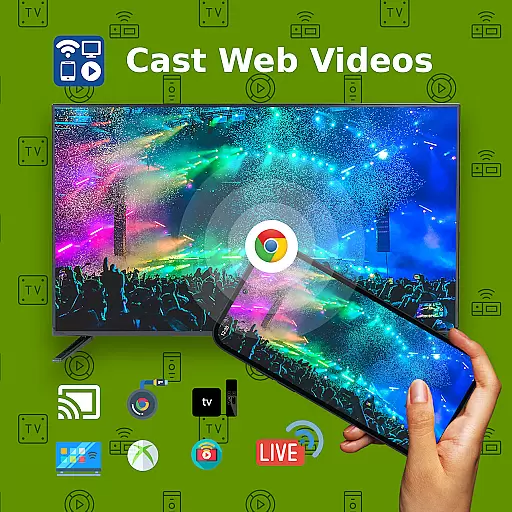
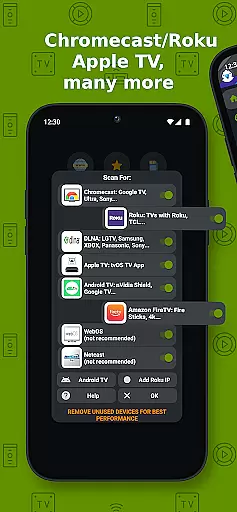
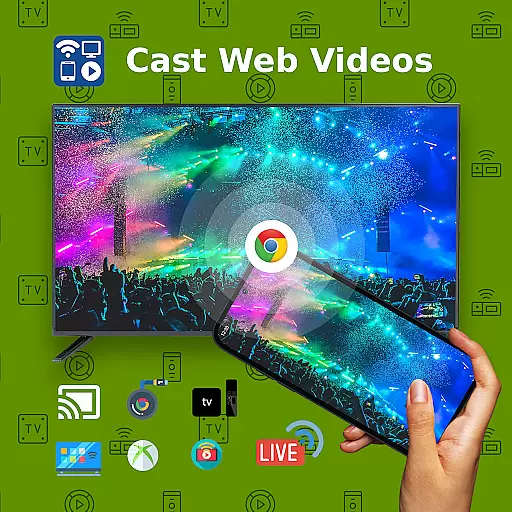
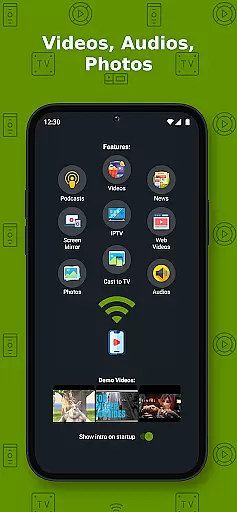
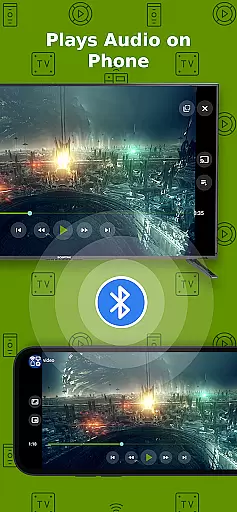
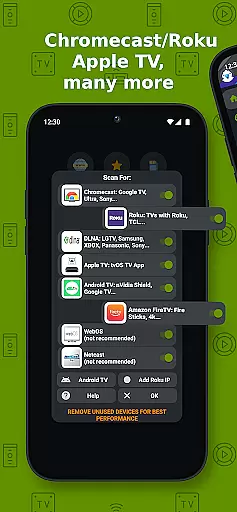
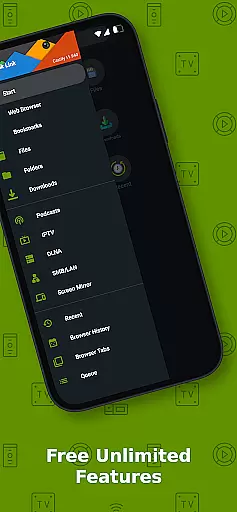
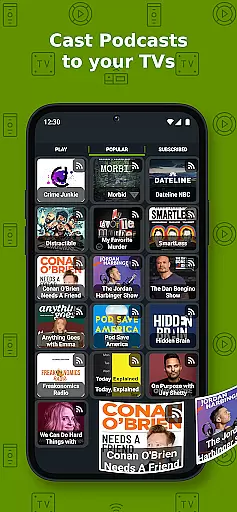
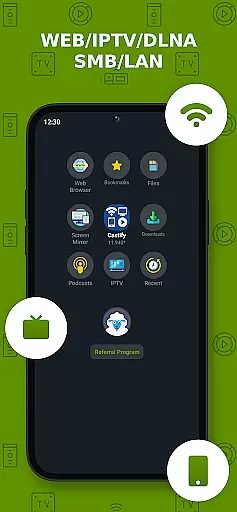
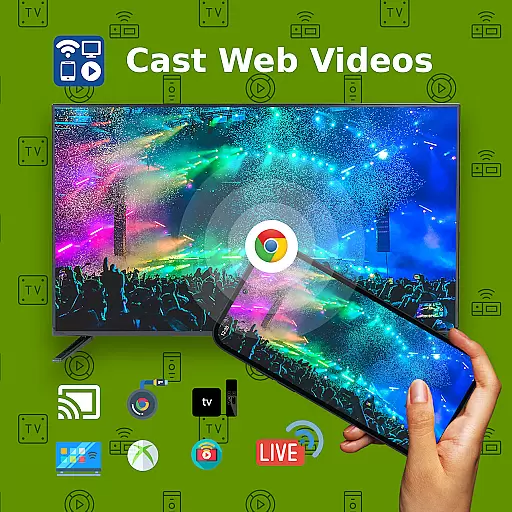
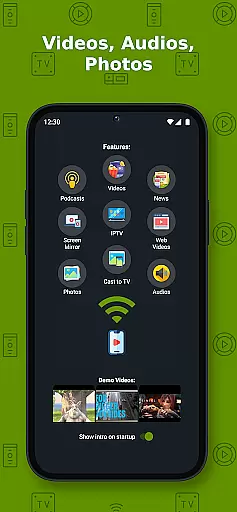
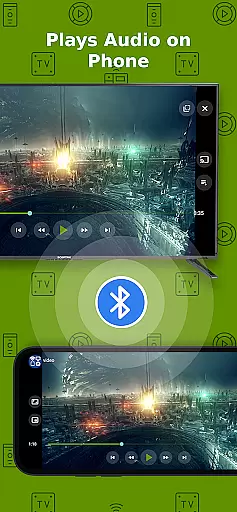
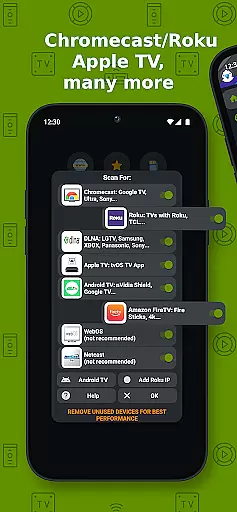
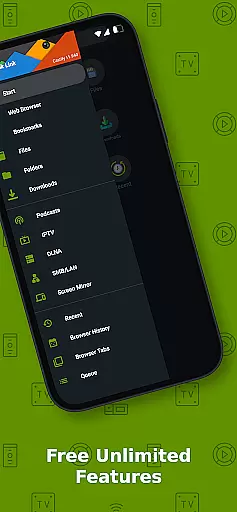
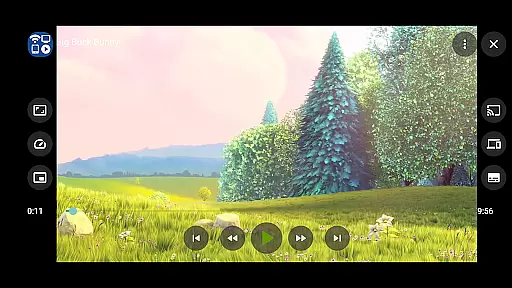
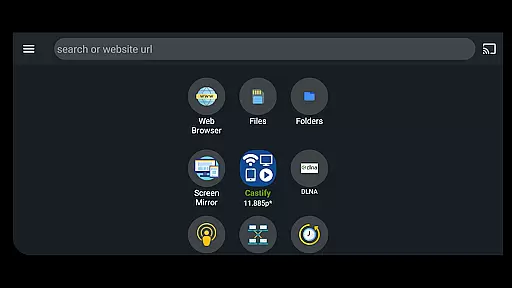
Cast to TV+ Chromecast Roku TV is a versatile streaming application that allows users to cast videos, music, photos, and other media content from their mobile devices to various streaming devices. The app supports a wide range of streaming devices including Chromecast, Roku TV, Fire TV, DLNA receivers, Xbox One, and many smart TVs with built-in DLNA support.
One of the standout features of this app is its ability to cast web videos found online from websites, making it an excellent tool for users who want to enjoy content on a larger screen. Additionally, the app offers AI Subtitle Generate and AI Subtitle Translation, enhancing accessibility for users who need subtitles in different languages.
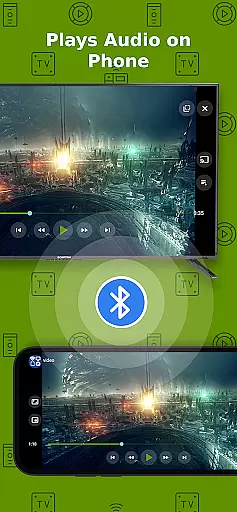
This app is particularly useful for users who have a Roku or Google Chromecast device, as it works best with these platforms. Whether you're streaming local files from your phone or casting content from IPTV providers, Cast to TV+ Chromecast Roku TV provides a seamless experience for enjoying media on your TV.
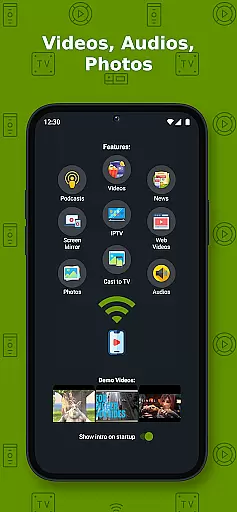
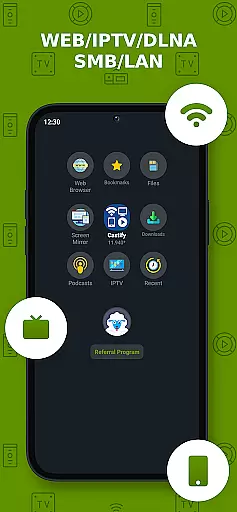
Cast to TV+ Chromecast Roku TV boasts a comprehensive set of features designed to enhance the streaming experience. The app supports multiple streaming devices such as Chromecast, Roku TV, Fire TV, DLNA receivers, Xbox One, and smart TVs from brands like LG, TCL, Phillips, Sony Bravia, Samsung, Sharp, and Panasonic.
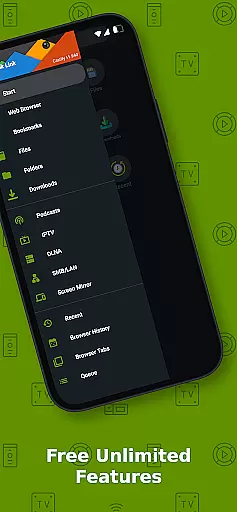
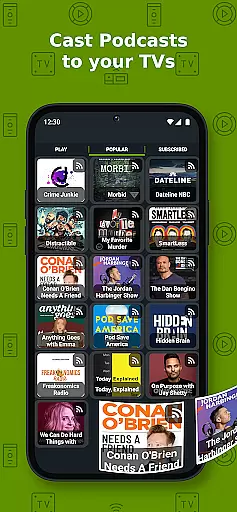
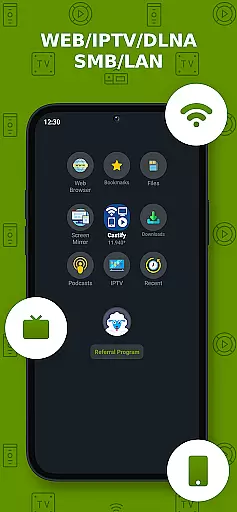
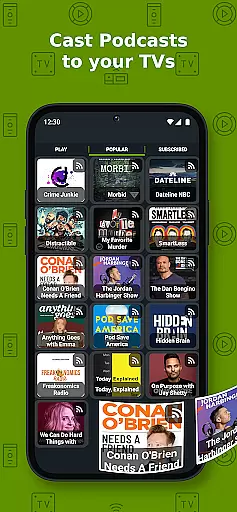
Users can stream content from various sources including phone files, browser websites, IPTV, podcasts, and DLNA servers. The app also includes advanced functionalities like AI Subtitle Generate and AI Subtitle Translation, which allow users to create and translate subtitles for any given video. This feature is particularly beneficial for viewers who prefer watching content in different languages.
Additional features include Universal Remote Controls for Roku, Android TV, Samsung, LGTV, and FireTV, Screen Mirroring, Picture in Picture (PiP), and support for IPTV m3u playlists. These capabilities ensure that users have a versatile and convenient streaming experience, whether they are casting local files or online content.
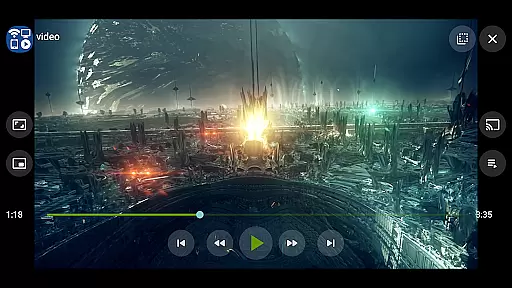
Video format compatibility is a crucial feature for any video player and editor, ensuring that users can enjoy content in various formats without technical hindrances. Cast to TV+ Chromecast Roku TV supports an extensive range of formats including MP4, MKV, MP3, JPG, PNG, HTML5 video, HLS Live Streaming, and IPTV m3u files or URLs. This wide compatibility ensures that whether you're streaming movies, music, or photos, the app facilitates seamless playback on your device.
The application's ability to cast videos from websites directly to a TV expands its utility beyond local file playback. By supporting both common and high-definition formats like 4K and HD, it caters to users who demand quality and flexibility in their viewing experience. However, it's important to note that proprietary video formats might not be supported, as the app relies on public formats for casting purposes.
For users with specific streaming devices such as Chromecast, Roku, Fire TV, or DLNA receivers, this app ensures that content can be streamed smoothly across different platforms. While some limitations exist with certain devicesu2014like MKV file support on Apple TV or DLNA settings on Xboxu2014the app provides comprehensive guidance on optimizing settings for the best experience. This makes it versatile for a broad spectrum of smart TVs and streaming gadgets.
AI-powered editing features represent the cutting-edge advancement in video players and editors, enhancing user interaction and content personalization. Cast to TV+ Chromecast Roku TV incorporates AI-driven functionalities such as AI Subtitle Generation and AI Subtitle Translation. These features allow users to create subtitles for any given video and translate SRT subtitles into different languages, making content more accessible and inclusive for diverse audiences.
This technological integration simplifies the process of adding textual context to multimedia content, which is particularly beneficial for hearing-impaired viewers or those consuming content in a non-native language. The AI algorithms are designed to accurately synchronize generated text with spoken dialogue, maintaining coherence and timing precision throughout the video playback.
Moreover, these AI capabilities extend beyond mere convenience; they enrich storytelling by allowing creators to reach wider audiences without manual intervention. As digital media consumption continues to grow globally, having an intelligent assistant within the app aids in breaking language barriers and fostering better engagement. Thus, Cast to TV+ Chromecast Roku TV not only plays videos but also empowers users to modify and enhance them according to their preferences using advanced AI tools.
User-friendly interface
Wide device compatibility
AI Subtitle Generate
Supports multiple formats
Completely free features
Limited functionality on some devices
No AirPlay support
Dependent on source website quality
Occasional connectivity issues
Ads in free version

A full editing room to accompany your Insta360 cameras and handheld gimbals.
 3.30
3.30
Create photo video with music & template. AI video maker for stunning slideshow.
4.60
Play ALL formats in 4K & HD. Video downloader, MP3 player, Chromecast & more.
4.80
Fast & easy HD video downloader for all formats, support 4K playback & download.
4.60
All in one HD video downloader & player for multiple formats with full privacy
4.70
Mix with Virtual DJ directly from your phone or tablet !
3.10
Manage your IPTV live channels and VOD playlists (no playlist included)
3.80
All in one multi protocols stream receiver for AirPlay, Cast and DLNA.
3.60
Watch IPTV on your Android device
4.60
Browser + Remote for Roku to stream webvideos, online movies and livestreams
4.60
Fast, private downloading, video saving, social media
4.50
AirMirror Receiver - Screen mirroring/cast web videos to Android TV by AirPlay.
4.40
Video Downloader is an utility that can save videos and music from web sites
4.20
This app was created to edit the metadata of music files.
4.20
All format media Player, no need video converter any more!
4.00
Cast to Smart TV, Fire TV. Cast video, photo - Fast & Stable!
3.90
HD video & music player - All format support with floating & PIP mode!
3.80
Client application for NextPVR software
3.00
Powerful HD video player with support for all formats & subtitles.
4.1


User Reviews