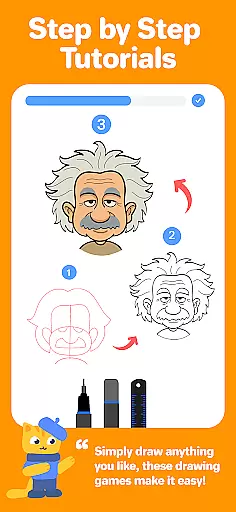
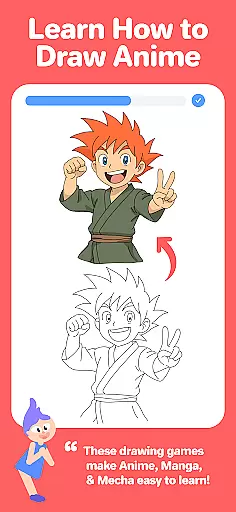
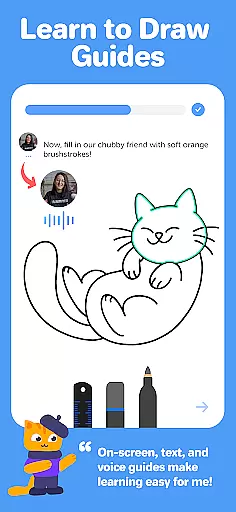
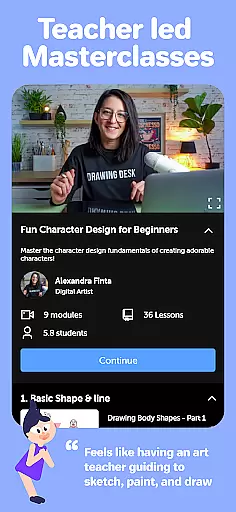

Drawing Desk is a premier digital art application trusted by over 70 million users globally, offering an extensive suite of drawing and painting tools. This app provides users with the ability to draw, doodle, sketch, paint, or color using professional-grade instruments such as pencils, crayons, and watercolor brushes. With its unique collection of features, Drawing Desk stands out as one of the best platforms for both learning and practicing art skills on mobile devices.
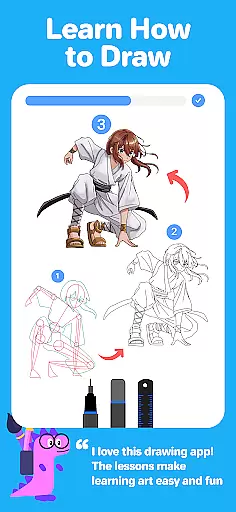
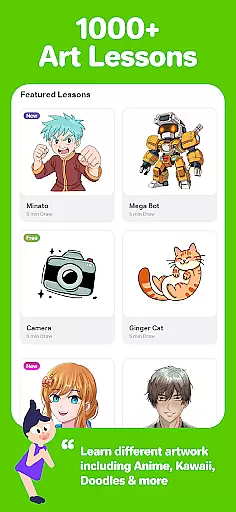
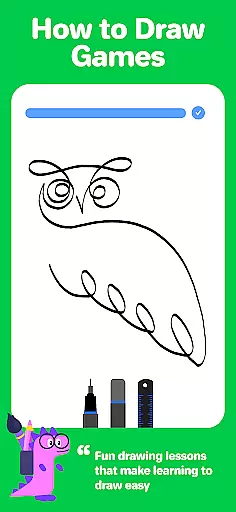
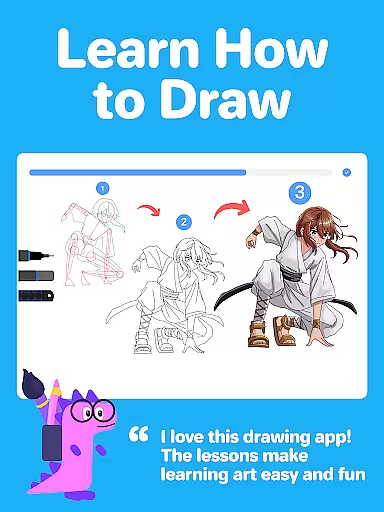
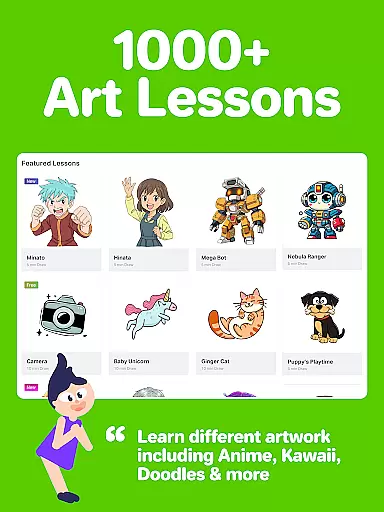
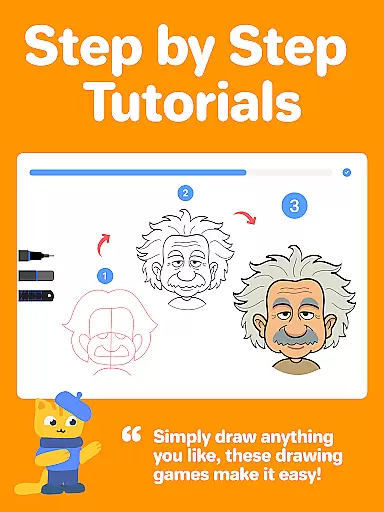
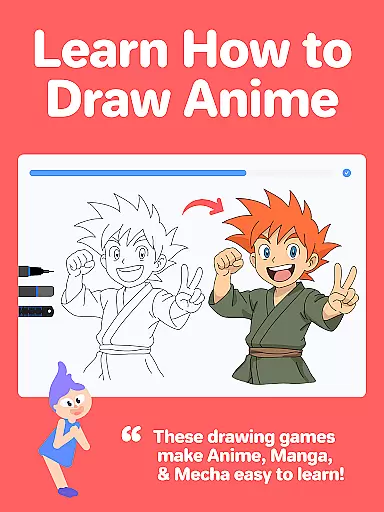
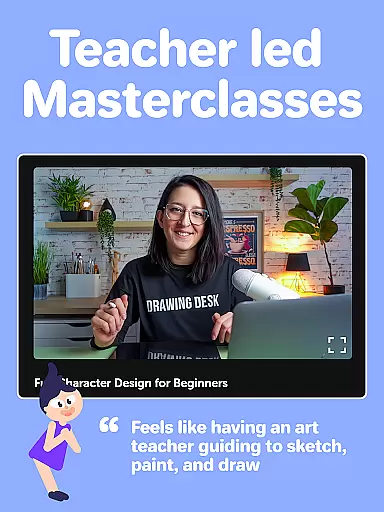
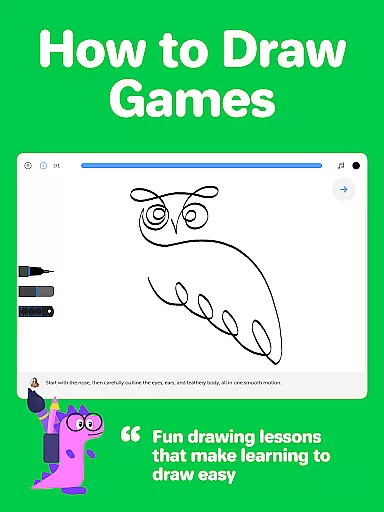
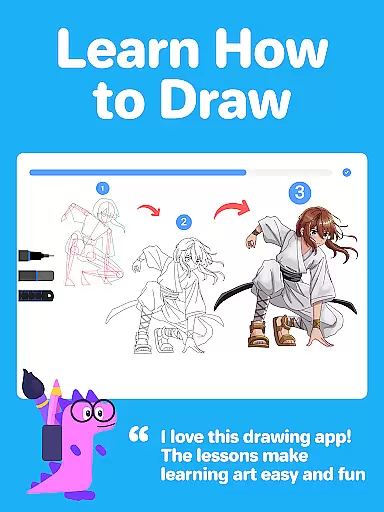
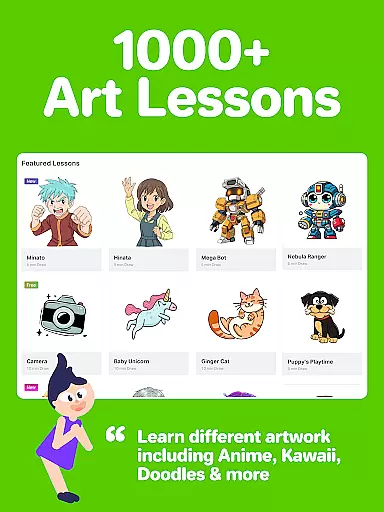
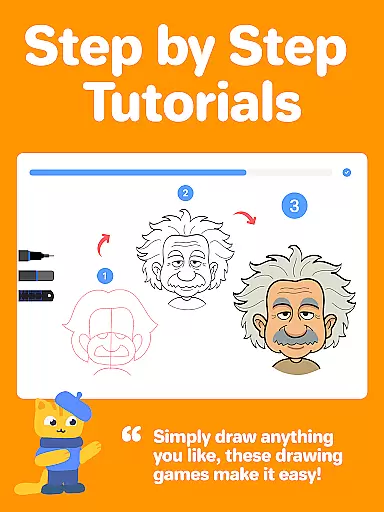
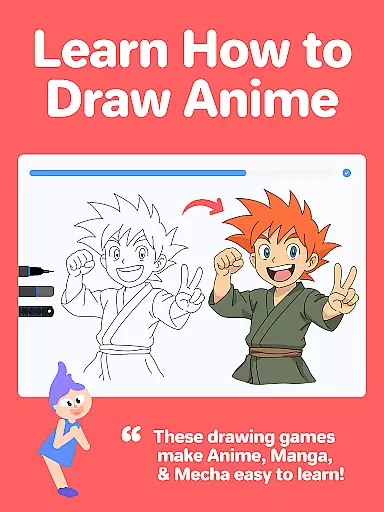
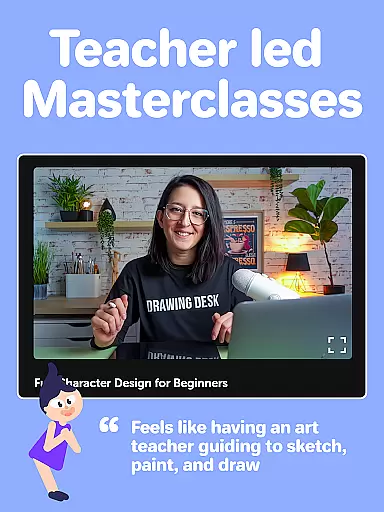
Designed for artists of all levels, Drawing Desk offers over 1000 step-by-step drawing lessons covering various styles including Anime, Manga, and Kawaii. The app also includes interactive drawing games and personalized learning paths, making it ideal for beginners and advanced learners alike. Additionally, Masterclasses led by professional artists provide comprehensive training from basic techniques to advanced digital art tips.
The app's AI-powered tools further enhance creativity, enabling features like Sketch to Art AI, Auto Colorize, and object removal. With support for unlimited layers, various canvas sizes, and a symmetry tool, Drawing Desk empowers users to create professional-quality digital illustrations easily and efficiently.
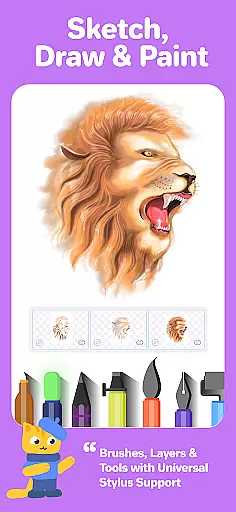
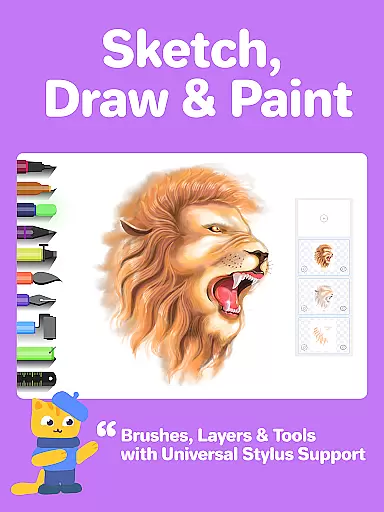
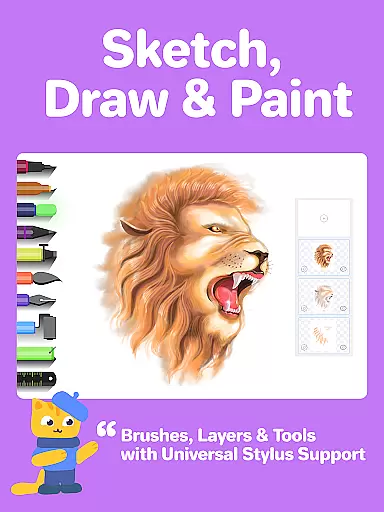
Drawing Desk distinguishes itself through its rich feature set tailored for digital artists. The app provides more than 25 sketch tools including pen, pencil, crayon, neon, watercolor brush, and ink, alongside advanced features like smudge and fill bucket tools with 125+ textures. Users can work with unlimited layers and choose from 200+ instant shapes for their artwork, while enjoying precise drawing capabilities with quick shape tools.
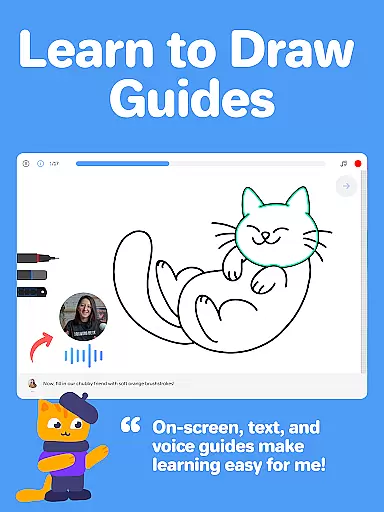
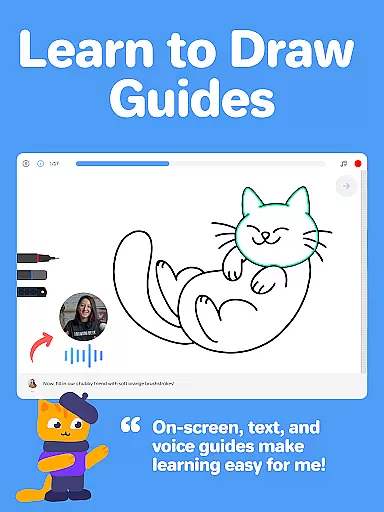
A key highlight is the structured learning system featuring over 1000 step-by-step drawing lessons with on-screen guides, text, and voice instructions. The app's Masterclass program offers professional video lessons with detailed explanations, making it easier for users to progress from beginner to advanced levels. The inclusion of AI-powered tools such as Auto Colorize and background/object removal significantly streamlines the creative process.
Additional notable features include color palettes with gradient options, symmetry drawing tools, and various canvas sizes (available in the Pad version). These comprehensive tools, combined with the app's user-friendly interface, make Drawing Desk suitable for both casual doodlers and professional artists seeking to create high-quality digital artwork.
Creative tools are essential for any digital art application, and Drawing Desk excels in this area. The app offers a comprehensive suite of over 25 sketch tools including pen, pencil, crayon, neon, watercolor brush, ink, smudge, eraser, and fill bucket. These tools mimic real-world art supplies, providing artists with familiar mediums to work with digitally.
In addition to traditional tools, Drawing Desk also provides innovative features such as the symmetry tool and instant shapes library containing over 200 designs. This allows users to experiment with complex patterns and shapes easily. The inclusion of unlimited layers gives artists the freedom to work on different parts of their artwork without affecting the entire piece, which is crucial for detailed work.
For those interested in color, Drawing Desk does not disappoint. It includes color palettes and gradients for painting, along with a fill bucket tool that boasts 125+ textures. This variety ensures that artists can achieve the exact look they desire, whether it's a simple gradient background or a textured landscape.
The value of these creative tools is immense. They cater to both beginners who are just starting to explore digital art and professionals seeking advanced features. With Drawing Desk, users have everything they need to bring their artistic visions to life, making it one of the most complete digital art platforms available today.
Flexibility in canvas size and format options is vital for digital artists who require precision and adaptability in their work. Drawing Desk addresses this need by offering various canvas sizes, particularly in its Pad app version. This feature enables artists to choose the perfect dimensions for their projects, whether they're working on small illustrations or large-scale designs.
Beyond canvas size, Drawing Desk supports multiple formats, accommodating different types of projects. Artists can switch between portrait and landscape orientations seamlessly, adapting their workspace to fit the specific requirements of each piece. This adaptability is especially beneficial when creating content for diverse platforms, from social media posts to print materials.
The ability to customize the canvas extends to layer management as well. With unlimited layers, artists can organize their work efficiently, separating elements like backgrounds, characters, and text into distinct layers. This organization not only streamlines the creative process but also makes editing individual components much easier.
Ultimately, Drawing Desk's canvas and format flexibility empowers artists to focus on their creativity without being constrained by technical limitations. By providing a versatile platform that adapts to various artistic needs, Drawing Desk ensures that every user can produce high-quality digital art tailored to their unique vision and purpose.
User-friendly interface
Extensive drawing tools
AI-powered features
Comprehensive learning modules
Cross-platform compatibility
Premium features locked
Some tools Pad-only
Occasional bugs reported
Large app size
Internet required for some functions
The ultimate tool for creating animations
 4.60
4.60
Transform photos into amazing monochrome dither art with professional algorithms
4.0
Unleash your drawing and painting potential
4.50
Art of Combination Wear OS Watch faces
4.4
Draw beautiful mandala's very easily
4.60
Nano Banana AI Image Generator, Anime Filter, AI Portrait, AI Photo Generator
4.30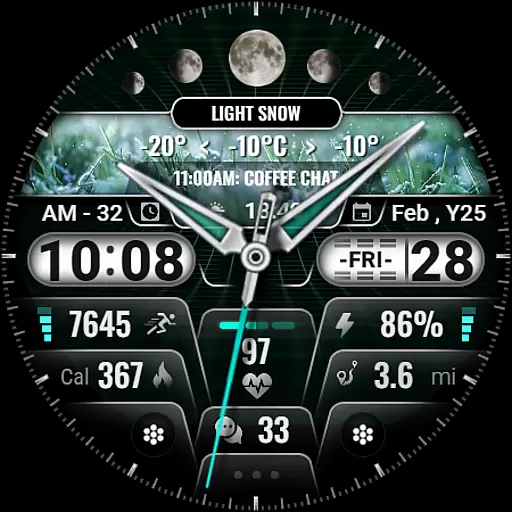
Art of Combination Wear OS Watch faces (for Wear OS 5+ devices)
3.90
Create Logos, Tattoos, AI Art & more with our AI Photo Generator & Design Editor
4.20
AI Tattoo Generator: Create Tattoo Designs & Get Ideas! Ink & Stencil Maker
4.50
Kling AI is an image and video generation and editing studio powered by AI.
4.50
Photo blender app to create overlay photos & double exposure.
4.40
Unleash Your Creativity with Draw Cartoon - AR Drawing App
4.10
Unleash the artist in you with our AR drawing and tracing tool for photo drawing
4.10
Sketch and paint on your device with the feel and freedom of drawing on paper
4.00
Turning simple sketches into captivating tales filled with life and motion
3.90
Your homescreen as an elegant glass with customized blur, lighting, and visuals.
3.70
Experience next-gen icons with a modern liquid glass look.
3.60
AI Assistant, powered by ChatGPT GPT-4 & GPT-4o. Your intelligent companion.
3.50
Create sweet, cool and unique couple avatars easily, in just a few steps!
3.40


User Reviews